


How to Set Up a Dual Boot Laptop for Cybersecurity Learning
Learn how to set up a dual boot laptop with Windows and Kali Linux for cybersecurity learning. Step-by-step guide covers partitioning, BIOS settings, secure boot, GRUB installation, and tool setup for CEH, OSCP, and ethical hacking practice with insights from Ethical Hacking Training Institute.
Introduction
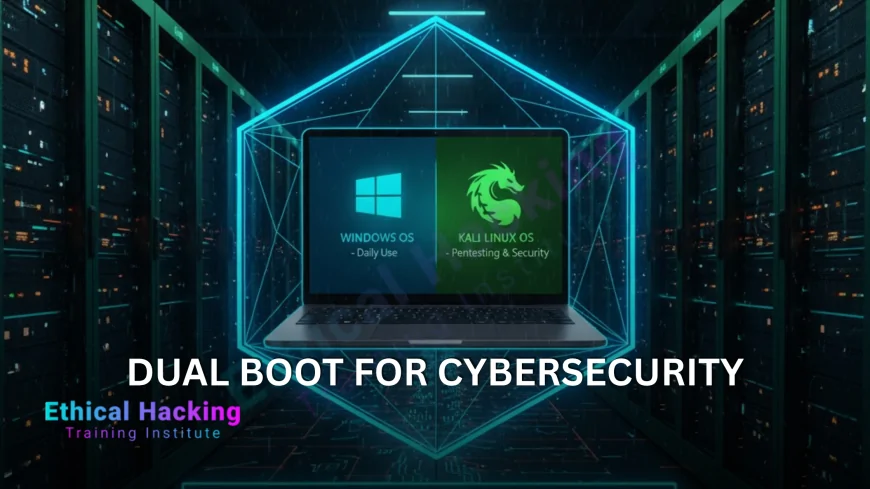
Dual booting Windows and Kali Linux on one laptop gives cybersecurity learners the best of both worlds—Windows for daily tasks and native Kali for hands-on pentesting, forensics, and exploit development. This setup avoids VM overhead, supports Wi-Fi injection, and enables full hardware access. Ideal for CEH, OSCP, TryHackMe, and Hack The Box labs. This guide walks you through partitioning, BIOS configuration, installation, GRUB setup, and post-install optimization. With training from Ethical Hacking Training Institute, turn your laptop into a powerful cybersecurity lab.
Why Dual Boot for Cybersecurity Learning
- Native Kali performance—no VM lag for Hashcat, Metasploit, or Volatility.
- Full hardware access—Wi-Fi injection, GPU cracking, USB passthrough.
- Windows compatibility—run Office, browsers, and corporate tools.
- Secure isolation—keep sensitive pentest data off Windows.
- OSCP-ready—official labs accept native Kali submissions.
- Cost-effective—one laptop for learning, work, and testing.
Prerequisites and Hardware Check
Before starting, verify your laptop meets requirements and back up all data. Use an external drive for Windows recovery. Check BIOS access key (F2, Del, F10). Ensure 500GB+ NVMe SSD (256GB minimum). Confirm Intel Wi-Fi (AX210/AX211) or plan to use Alfa AWUS036ACH. Disable Fast Boot in Windows Power Options. Download Kali ISO (64-bit) from kali.org and Windows ISO if reinstalling. Create bootable USBs using Rufus (MBR for BIOS, GPT for UEFI). Test USB boot in BIOS to confirm functionality.
Step 1: Backup and Partition Your Drive
- Back up all files to external drive or cloud.
- Open Disk Management in Windows (Win + X).
- Shrink Windows partition by 100GB+ (right-click C: → Shrink Volume).
- Leave unallocated space for Kali—do not format.
- Verify free space shows in Disk Management.
- Disable Fast Startup (Power Options → Choose what power buttons do).
Step 2: Configure BIOS/UEFI Settings
Restart and enter BIOS (F2/Del). Switch to UEFI mode if using GPT. Disable Secure Boot (Security tab). Enable USB Boot and set USB as first boot device. Save and exit (F10). Insert Kali USB and reboot. If stuck at Windows, re-enter BIOS and confirm boot order. For legacy systems, switch to CSM/Legacy mode and use MBR USB. Test boot into Kali live environment to verify hardware detection (Wi-Fi, GPU, sound).
Step 3: Install Kali Linux
- Boot into Kali live USB → select Graphical Install.
- Choose language, location, keyboard.
- Set hostname (e.g., kali-student) and domain (leave blank).
- Create user: full name, username (kali), strong password.
- Select Manual partitioning.
- Use free space: create /boot/efi (512MB, FAT32) if UEFI, / (50GB+, ext4), /home (remaining, ext4), swap (8–16GB).
- Install GRUB to /dev/sda (or main drive).
- Finish and reboot.
Step 4: Verify GRUB and Dual Boot
Upon reboot, GRUB menu should appear with Kali and Windows options. Select Windows to confirm boot. If GRUB missing, boot Kali USB → open terminal → `sudo mount /dev/sdaX /mnt` (X = root partition) → `sudo grub-install /dev/sda` → `sudo update-grub`. Reboot. Windows may trigger BitLocker recovery—enter key or disable in Windows. Set default OS in GRUB (`/etc/default/grub` → `GRUB_DEFAULT=0` → `sudo update-grub`).
Step 5: Post-Installation Optimization
- Update Kali: sudo apt update && sudo apt full-upgrade.
- Install kali-linux-default meta-package for full tools.
- Add non-free firmware: sudo apt install firmware-linux-nonfree.
- Enable Wi-Fi injection: confirm iwconfig shows monitor mode.
- Install VirtualBox/VMware if needed for labs.
- Set up LUKS encryption on /home (optional).
Troubleshooting Common Issues
- GRUB not showing: Use Boot-Repair USB (`boot-repair-disk`).
- Windows BitLocker lock: Suspend BitLocker before install.
- Wi-Fi not working: Install drivers or use external Alfa.
- Black screen on boot: Add `nomodeset` to GRUB.
- Slow performance: Enable Intel VT-x/AMD-V in BIOS.
- Time sync issues: Set Windows to UTC (`regedit` → LocalTime → 0).
Security Best Practices
Encrypt Kali partitions with LUKS during install. Use strong, unique passwords. Enable full-disk encryption on Windows (BitLocker). Avoid running pentest tools on Windows partition. Regularly back up GRUB config (`grub.cfg`). Update both OSes monthly. Use YubiKey or TOTP for sudo access. Never connect to untrusted networks without VPN. Store exploit code and wordlists on encrypted external drives.
Recommended Tools to Install
- Metasploit, Nmap, Burp Suite — core pentesting.
- Hashcat, John — password cracking.
- Aircrack-ng, Wireshark — wireless and packet analysis.
- Volatility, Autopsy — memory and disk forensics.
- Ghidra, Radare2 — reverse engineering.
- BloodHound, CrackMapExec — AD exploitation.
Learning Path with Dual Boot
Start with TryHackMe “Learn Linux” path on Kali. Practice Nmap, Gobuster, and sqlmap. Move to Hack The Box starting boxes. Enroll in CEH with Kali labs. Prepare for OSCP using PWK labs in native Kali. Join r/netsec and Discord communities. Document findings in Obsidian or CherryTree. Build a home lab with Proxmox on separate SSD. Aim for bug bounties on HackerOne.
Conclusion
Dual booting Windows and Kali Linux creates a versatile cybersecurity learning environment. Native performance, full tool access, and secure isolation empower your growth. Follow this guide to set up in under 2 hours. Pair with security training to master ethical hacking and launch your career.
Frequently Asked Questions
Can I dual boot on 256GB SSD?
Yes—allocate 100GB to Kali, rest to Windows.
Is Secure Boot required?
No—disable it for GRUB to work.
Will dual boot void warranty?
No—software changes don’t affect hardware warranty.
Can I encrypt both OSes?
Yes—LUKS for Kali, BitLocker for Windows.
What if GRUB fails?
Use Boot-Repair or reinstall GRUB from live USB.
Is VM better than dual boot?
Dual boot offers better performance and hardware access.
Can I remove Kali later?
Yes—delete partitions and fix Windows bootloader.
Does dual boot slow down laptop?
No—performance same as single OS when running one.
Best laptop for dual boot?
ThinkPad X1 Carbon, Dell XPS, or Framework Laptop.
Where to learn dual boot safely?
Ethical Hacking Training Institute offers guided labs.
What's Your Reaction?
 Like
0
Like
0
 Dislike
0
Dislike
0
 Love
0
Love
0
 Funny
0
Funny
0
 Angry
0
Angry
0
 Sad
0
Sad
0
 Wow
0
Wow
0