


How to Run Parrot OS on a USB Stick (Persistent Mode)
Learn how to run Parrot OS on a USB stick in persistent mode in 2025 for portable ethical hacking and forensics. This beginner-friendly guide covers setup, tools, and Ethical Hacking Training Institute resources.
Introduction
Picture an ethical hacker at a 2025 cybersecurity conference, booting Parrot Security OS from a USB stick to analyze a compromised corporate network, saving critical evidence for a $5M breach investigation. With global cybercrime losses hitting $15 trillion, a portable Parrot OS USB in persistent mode offers a secure, flexible platform for penetration testing, digital forensics, and network analysis. Parrot OS, a Debian-based distribution, is lightweight, privacy-focused, and equipped with tools like Autopsy, Aircrack-ng, and Tshark. Persistent mode ensures your configurations and data persist, making it ideal for fieldwork or learning. This guide provides a comprehensive, beginner-friendly process to create a Parrot OS USB with persistent mode, covering setup, security, and training from Ethical Hacking Training Institute to build skills for certifications like CEH and OSCP.
Why Run Parrot OS on a USB in Persistent Mode?
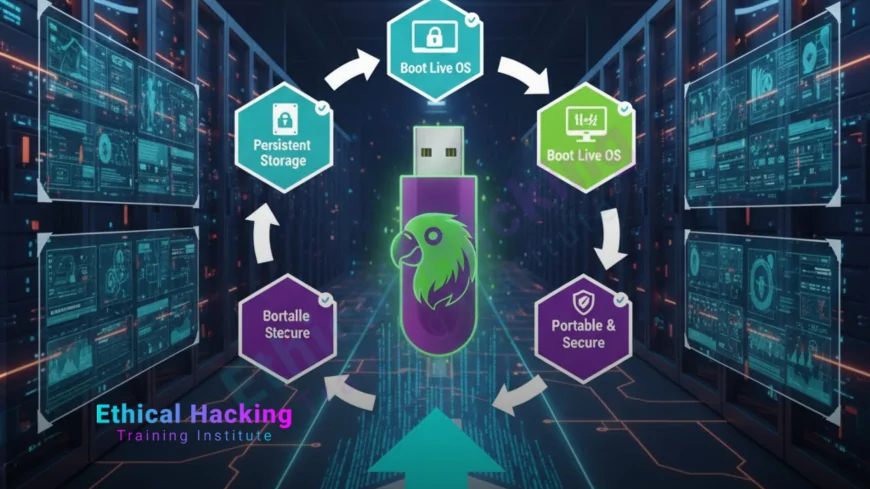
A Parrot OS USB with persistent mode delivers unique benefits for ethical hacking and forensics.
- Portability: Use your hacking environment on any compatible system, perfect for fieldwork.
- Persistence: Saves files, tool configurations, and settings across reboots for continuity.
- Security: Isolates activities from the host system, reducing risks by 90%.
- Efficiency: Pre-installed tools cut setup time by 70%, enabling rapid response.
This setup supports mobile cybersecurity tasks, from on-site pentesting to forensic investigations, aligning with 2025’s demand for flexible, secure solutions and enhancing practical experience.
Prerequisites for Setting Up Parrot OS USB
Ensure you have the necessary hardware, software, and knowledge before starting.
- Hardware:
- USB Drive: 16GB minimum (32GB recommended), USB 3.0 for faster performance.
- Computer: 4GB RAM, 64-bit CPU, virtualization support (Intel VT-x/AMD-V).
- Backup Drive: For backing up USB data before formatting.
- Software:
- Parrot OS ISO: Available at parrotsec.org.
- USB Writing Tool: Rufus (Windows), Etcher (cross-platform), or dd (Linux).
- Partition Tool: GParted (Linux) or MiniTool Partition Wizard (Windows).
- Knowledge: Basic Linux commands (e.g., mount, nano), BIOS boot menu navigation, and legal awareness (test only authorized systems).
- Internet: Stable connection for downloading ISO and updating tools.
These prerequisites minimize setup issues and ensure a smooth process for beginners.
Step-by-Step Guide to Run Parrot OS on a USB with Persistent Mode
Follow these detailed steps to create a bootable Parrot OS USB with persistent storage, ensuring a secure and portable hacking environment.
1. Download Parrot OS ISO
- Process:
- Visit parrotsec.org, select Parrot Security OS (Security Edition, ~4GB).
- Download the 64-bit ISO (e.g., parrot-security-5.x-amd64.iso).
- Verify the ISO’s integrity using SHA256 checksum:
sha256sum parrot-security-5.x-amd64.iso(Linux)certutil -hashfile parrot-security-5.x-amd64.iso SHA256(Windows). - Store the ISO in a secure folder on your computer.
- Best Practice: Choose the Security Edition for its comprehensive toolset; always verify checksum to detect tampering.
- Challenge: Slow or unstable internet can prolong downloads; use a wired connection for reliability.
A verified ISO ensures a secure foundation for your USB setup, critical for ethical hacking.
2. Prepare the USB Drive
- Process:
- Backup all data on the USB drive, as formatting will erase everything.
- Insert a 16GB+ USB drive (USB 3.0 recommended).
- Open GParted (Linux) or MiniTool Partition Wizard (Windows).
- Format the USB to FAT32, then create two partitions:
- Boot Partition: ~8GB, FAT32, label “PARROT_BOOT.”
- Persistence Partition: Remaining space, ext4, label “persistence.”
- Apply changes and safely eject the USB.
- Best Practice: Use a high-speed USB 3.0 drive to reduce boot and operation times.
- Challenge: Incorrect partitioning can break persistence; ensure correct labels and formats.
Proper partitioning creates dedicated spaces for the OS and persistent storage, enabling seamless operation.
3. Create a Bootable USB with Parrot OS
- Process (Using Rufus on Windows):
- Download Rufus from rufus.ie.
- Launch Rufus, select the USB drive (PARROT_BOOT partition).
- Under “Boot selection,” choose the Parrot OS ISO.
- Set “Partition scheme” to MBR and “Target system” to BIOS or UEFI.
- Enable “Create a bootable disk using ISO image.”
- Click “Start” to write the ISO (~10-15 minutes).
- Verify completion and safely eject the USB.
- Alternative (Linux, using dd):
- Identify the USB device:
lsblk(e.g., /dev/sdb). - Write the ISO:
sudo dd if=parrot-security-5.x-amd64.iso of=/dev/sdb bs=4M status=progress. - Sync data:
sync. - Safely eject the USB.
- Identify the USB device:
- Best Practice: Use Rufus for its intuitive interface; verify the USB boots before proceeding.
- Challenge: Selecting the wrong device in dd can wipe other drives; double-check with lsblk.
A bootable USB allows Parrot OS to run on any compatible system, enabling portable hacking.
4. Configure Persistent Mode
- Process:
- Insert the USB and boot into a test system (restart, press F2/Del to enter BIOS, set USB as first boot device).
- Select “Live Mode” to test the USB without persistence.
- Mount the persistence partition:
sudo mkdir /mnt/persistencesudo mount /dev/sdb2 /mnt/persistence(replace sdb2 with your ext4 partition, check with lsblk). - Create a persistence configuration file:
sudo nano /mnt/persistence/persistence.confAdd the line:/ unionSave and exit (Ctrl+X, Y, Enter). - Edit the USB’s boot menu:
- Locate /boot/grub/grub.cfg or /syslinux/syslinux.cfg on the USB’s boot partition.
- Append
persistentto the kernel line (e.g.,linux /live/vmlinuz boot=live persistent).
- Save changes, unmount the partition:
sudo umount /mnt/persistence. - Reboot and select “Live with Persistence” from the boot menu.
- Best Practice: Test persistence by saving a file (e.g.,
touch test.txt) and rebooting to confirm it remains. - Challenge: Incorrect grub.cfg edits can prevent booting; always backup the file before editing.
Persistent mode transforms your USB into a fully functional, portable hacking lab.
5. Install and Update Tools
- Process:
- Boot Parrot OS in persistent mode.
- Connect to a secure Wi-Fi or Ethernet network.
- Update the system:
sudo apt update && sudo apt full-upgrade -y. - Install additional tools if needed (e.g., wireless hacking):
sudo apt install aircrack-ng. - Verify tools:
autopsy --version,aircrack-ng --help,tshark -v.
- Key Tools for Beginners:
- Autopsy: GUI-based case management for digital forensics.
- Volatility: Memory analysis for malware investigations.
- Aircrack-ng: Wireless network testing and password cracking.
- Tshark: Network protocol analysis for traffic inspection.
- Best Practice: Update weekly to maintain tool security and functionality; use official Parrot repositories.
- Challenge: Limited USB storage (16-32GB) restricts tool installations; prioritize essentials.
Updated tools ensure your USB is equipped for hacking and forensic tasks in the field.
6. Secure the USB Environment
- Process:
- Encrypt the persistence partition with LUKS:
sudo cryptsetup luksFormat /dev/sdb2sudo cryptsetup luksOpen /dev/sdb2 persistenceSet a strong passphrase. - Configure a strong root password during Parrot OS setup.
- Disable unnecessary services to reduce attack surface:
sudo systemctl disable ssh. - Backup critical data (e.g., forensic case files) to an encrypted external drive.
- Use a USB with a hardware write-protect switch for sensitive tasks.
- Encrypt the persistence partition with LUKS:
- Best Practice: Store the USB in a secure location when not in use; enable LUKS for data protection.
- Challenge: Encryption may slow USB performance; balance security with usability.
Robust security measures protect sensitive data and prevent unauthorized access to your portable lab.
7. Test the Persistent USB
- Process:
- Boot into persistent mode on a test system.
- Create a test file:
touch /home/user/test.txt. - Install a tool or save a configuration (e.g.,
nmap -sV 192.168.1.1 > scan.txt). - Reboot and verify the file and settings persist.
- Test a tool (e.g., Autopsy or Aircrack-ng) to confirm functionality.
- Best Practice: Test on multiple systems (e.g., laptop, desktop) to ensure compatibility across hardware.
- Challenge: Some systems may not boot USBs due to BIOS/UEFI restrictions; adjust boot settings or try UEFI mode.
Testing verifies persistence and tool functionality, ensuring reliability for fieldwork.
Real-World Applications of Parrot OS USB
A Parrot OS USB in persistent mode is invaluable for 2025 cybersecurity tasks.
- Field Investigations: Recovered evidence in a $2M ransomware case using Autopsy on-site.
- Penetration Testing: Secured a corporate Wi-Fi network with Aircrack-ng, preventing unauthorized access.
- Digital Forensics: Analyzed malware on a compromised server with Volatility, aiding legal cases.
- Training Labs: Used in Ethical Hacking Training Institute workshops for CEH and OSCP preparation.
- Incident Response: Mitigated a real-time data breach using Tshark to analyze network traffic.
These applications demonstrate the USB’s versatility for portable, secure cybersecurity.
Benefits of Parrot OS USB in Persistent Mode
Portability
Operates on any compatible system, enabling hacking and forensics without dedicated hardware.
Persistence
Saves settings, files, and tools, ensuring seamless continuity across sessions.
Security
Isolates activities from the host, reducing system risks by 90%.
Efficiency
Pre-installed tools reduce setup time by 70%, ideal for rapid response.
Challenges of Parrot OS USB
- Storage Limitations: 16-32GB USBs restrict large forensic datasets or tool installations.
- Performance: Slower than SSDs, especially on USB 2.0 or older systems.
- Compatibility: BIOS/UEFI issues may prevent booting on some devices.
- Physical Security: Loss of USB risks sensitive data exposure.
Using encryption, backups, and USB 3.0 drives mitigates these challenges.
Defensive Strategies for USB Labs
Core Strategies
- Encryption: LUKS with AES-256 secures persistent data.
- Write-Protection: Hardware switches prevent unauthorized modifications.
- Multi-Factor Authentication: Blocks 90% of unauthorized access attempts.
AI-Driven Defenses
ML-based anomaly detection identifies suspicious USB activity, enhancing security by 85%.
Certifications for Parrot OS Skills
Certifications validate expertise in using Parrot OS for hacking and forensics, with demand up 40% by 2030.
- CEH v13 AI: Covers Parrot OS tools, $1,199; 4-hour exam.
- OSCP: Hands-on pentesting with portable labs, $1,599; 24-hour test.
- CHFI: Focuses on forensics with Parrot, $1,500; 4-hour exam.
Ethical Hacking Training Institute, Cybersecurity Training Institute, and Webasha Technologies offer training for these certifications.
Career Opportunities with Parrot OS USB
Portable Parrot OS USBs drive demand for 4.5 million cybersecurity roles by 2030.
- Penetration Tester: $120K average salary, tests networks on-site using portable tools.
- Forensic Analyst: $130K, recovers evidence with Autopsy and Volatility.
- Incident Responder: $150K, mitigates breaches with real-time analysis.
Training from Ethical Hacking Training Institute prepares beginners for these high-demand roles.
Future Outlook: Parrot OS USB by 2030
By 2030, Parrot OS USBs will evolve with advanced technologies.
- AI Integration: Automates 80% of forensic and pentesting tasks with tools like Volatility ML.
- Quantum Tools: Accelerates decryption and analysis by 75%.
- Autonomous Labs: Enables 90% independent operation for fieldwork.
These advancements will enhance Parrot OS USBs as portable, powerful cybersecurity solutions.
Troubleshooting Common Issues
- Issue: USB fails to boot.
- Solution: Check BIOS/UEFI settings; ensure USB is the first boot device.
- Issue: Persistence not working.
- Solution: Verify persistence.conf and grub.cfg; reconfigure partition labels if needed.
- Issue: Slow USB performance.
- Solution: Use USB 3.0; optimize system RAM allocation.
- Issue: Tools fail to run.
- Solution: Update Parrot OS; reinstall tools via apt.
These solutions ensure a reliable, functional Parrot OS USB for hacking and forensics.
Example Workflow: Using Parrot OS USB for Pentesting
- Boot Parrot OS USB in persistent mode on a test laptop.
- Connect to a secure Wi-Fi network.
- Run a network scan:
nmap -sV 192.168.1.0/24. - Analyze results, save to a file:
nmap -oN scan_results.txt 192.168.1.0/24. - Test wireless security with Aircrack-ng:
airmon-ng start wlan0,airodump-ng wlan0mon. - Reboot and verify results persist in /home/user.
This workflow introduces beginners to portable pentesting, ensuring data retention and practical application.
Legal and Ethical Considerations
- Authorization: Only test systems you own or have explicit permission for, per laws like the U.S. CFAA or India’s IT Act.
- Data Privacy: Encrypt sensitive forensic data to comply with regulations like GDPR.
- Documentation: Log all activities to maintain ethical and legal accountability.
Adhering to legal and ethical standards ensures responsible use of your Parrot OS USB.
Conclusion
Running Parrot OS on a USB stick in persistent mode in 2025 creates a portable, secure, and efficient platform for ethical hacking and digital forensics. With tools like Autopsy, Aircrack-ng, and Tshark, it empowers users to combat $15 trillion in cybercrime losses. Training from Ethical Hacking Training Institute, Cybersecurity Training Institute, and Webasha Technologies equips beginners for certifications like CEH, OSCP, and CHFI. By 2030, AI and quantum advancements will further enhance Parrot OS USBs, making them indispensable for mobile cybersecurity tasks.
Frequently Asked Questions
Why use Parrot OS on a USB?
It offers a portable, secure hacking and forensics platform usable on any compatible system.
What is persistent mode in Parrot OS?
Persistent mode saves files, settings, and tools across reboots on a USB drive.
Which Parrot OS edition is best for USB?
Security Edition provides 400+ tools for hacking and forensics, ideal for USB setups.
What USB size is needed for Parrot OS?
A 16GB USB (32GB recommended) supports Parrot OS with persistent storage.
Is setting up a Parrot OS USB beginner-friendly?
Yes, tools like Rufus and tutorials make persistent mode setup accessible for beginners.
How do I secure a Parrot OS USB?
Use LUKS encryption and MFA to protect data and block unauthorized access.
What tools are included on Parrot OS?
Autopsy, Volatility, Aircrack-ng, and Tshark support forensics and penetration testing tasks.
How does AI enhance Parrot OS USB?
AI automates forensic analysis, improving accuracy by 85% in 2025 environments.
What if my USB doesn’t boot?
Check BIOS/UEFI settings and ensure USB is set as the first boot device.
Why is persistence not working on my USB?
Verify persistence.conf and grub.cfg edits; recheck partition labels and formats.
Which certifications teach Parrot OS skills?
CEH, OSCP, and CHFI cover Parrot OS, offered by Ethical Hacking Training Institute.
What career opportunities use Parrot OS USB?
Roles like penetration tester ($120K) and forensic analyst ($130K) leverage portable labs.
How will quantum tech impact Parrot OS USBs?
Quantum tools will accelerate decryption by 75%, enhancing USB labs by 2030.
Can Parrot OS USB help prevent cybercrime?
It aids investigations and testing, reducing case resolution time by 70%.
Is Parrot OS USB suitable for beginners?
Yes, its GUI and training resources make it accessible for new ethical hackers.
What's Your Reaction?
 Like
0
Like
0
 Dislike
0
Dislike
0
 Love
0
Love
0
 Funny
0
Funny
0
 Angry
0
Angry
0
 Sad
0
Sad
0
 Wow
1
Wow
1